Access and pricing
Upload, place text and inspect the result on a desktop or laptop before downloading.
 Printooly
A closer look at your next idea
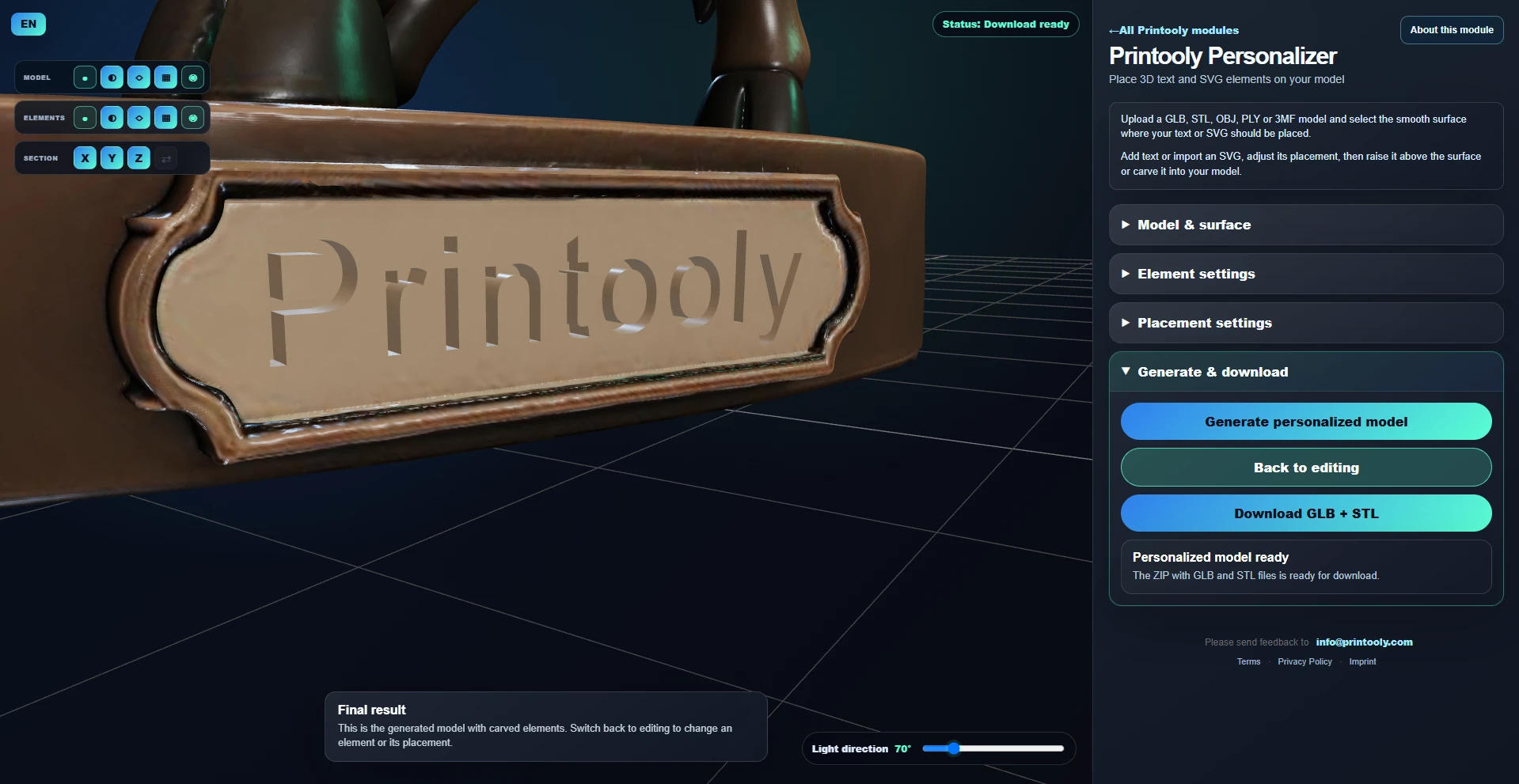
Add a name, your company logo or an icon to a 3D model. Create text or import an SVG, place it on the surface, then choose a raised design or an engraved recess.
On phones and tablets, you can explore the tools and read their guides. Uploading, editing, generating and exporting require a desktop or laptop.
A GLB, STL, OBJ, PLY or 3MF model. Add text with a built-in or uploaded TTF, OTF or TTC font, or import an SVG logo or icon up to 1 MB.
A download containing GLB and STL models with your raised or engraved text and SVG elements.
Your starting point
From your first idea to your next step.
Upload your model and select a smooth surface where the name, logo or icon should sit.
Add a text element or choose an SVG element and upload your company logo or icon as an SVG.
Adjust position, rotation and size. Choose Raise to add the design above the surface or Carve to engrave it, then set the height or depth.
Generate the result, inspect how the elements meet the model and download GLB and STL for a check in your slicer.
Upload, place text and inspect the result on a desktop or laptop before downloading.
Check that small lines and letters remain thick enough at the final print size. Keep engravings shallow enough to leave a suitable wall thickness, and inspect how raised elements join the surface. Curvature fitting depends on the selected area; if it cannot be applied, the element is exported flat. Review the generated geometry in your slicer.
About this module
Yes. Import your logo as an SVG up to 1 MB, place it on the model and choose Raise or Carve. Adjust its size, rotation and depth, then inspect the generated result.
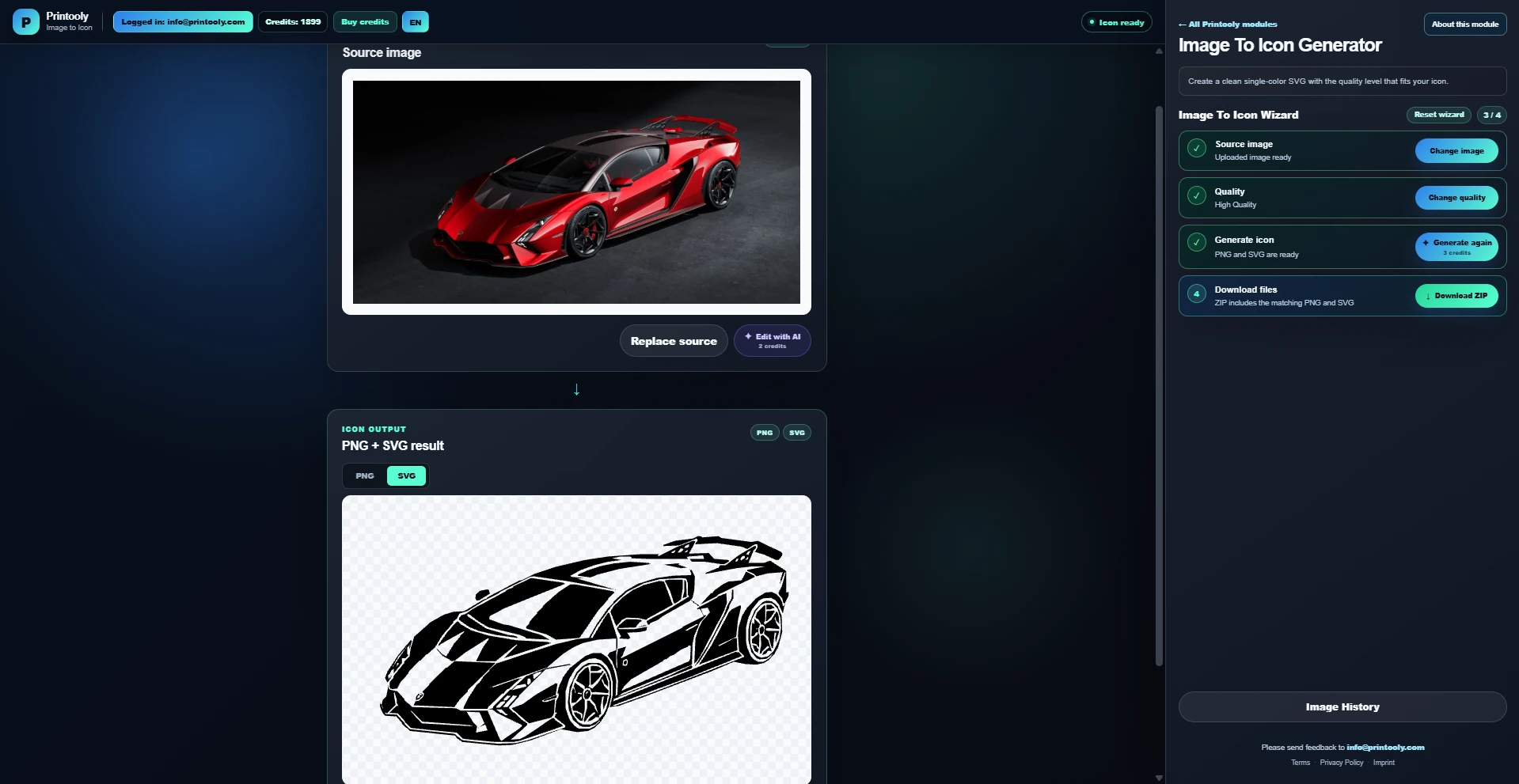
The Personalizer’s artwork import uses SVG. Convert a suitable image into vector shapes first, for example with Image to Icon, then import the resulting SVG. Renaming a PNG or JPG file to .svg does not convert it.
Use clear vector shapes and convert any text to paths before importing. Filled shapes and strokes become one solid shape; original colors are ignored. Simplify very detailed artwork and check thin lines at your intended print size.
MORE TO EXPLORE
READY WHEN YOU ARE
Save this link and open the tool on a desktop or laptop when you’re ready to create.