Printooly
English

AI Image to 3D Generator

Turn a photo or illustration into a 3D model

Start with a person, an object or an illustration. Use Multiview to combine matching object views, or choose Flat 3D Model to turn an illustration into a shallow relief.

Made for desktops and laptops

On phones and tablets, you can explore the tools and read their guides. Uploading, editing, generating and exporting require a desktop or laptop.

What could you make?

  • A person-inspired figurine from a photo
  • An object model from reference views
  • A shallow relief from an illustration

What you start with

PNG, JPG or WebP images, up to 20 MB each. Start with a clear front view, add optional matching views, or choose an illustration for a flat relief.

What you get

Downloadable STL geometry and a GLB model for the available generation mode, packaged with the generated result.

A real example

From one portrait to a 3D bust.

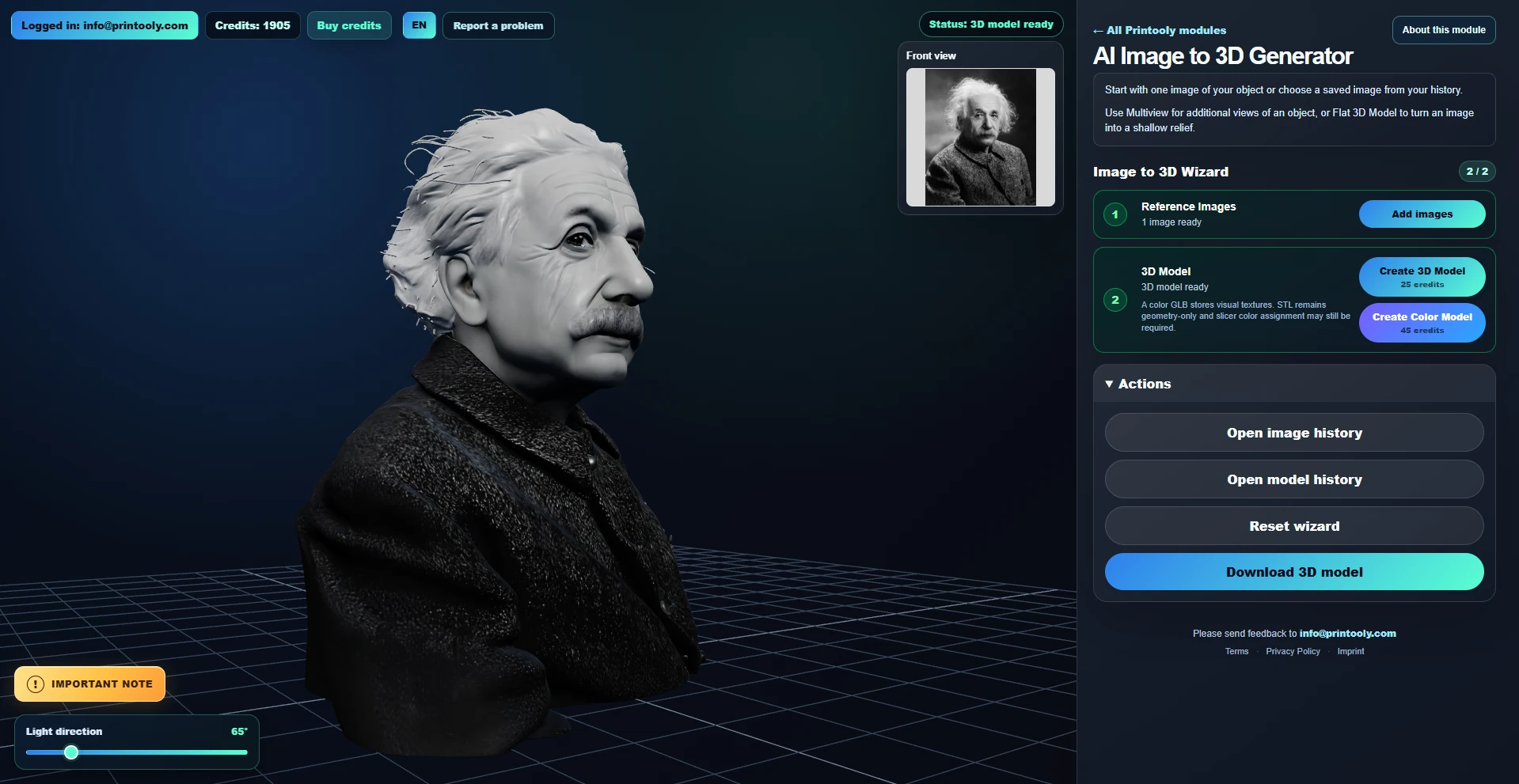
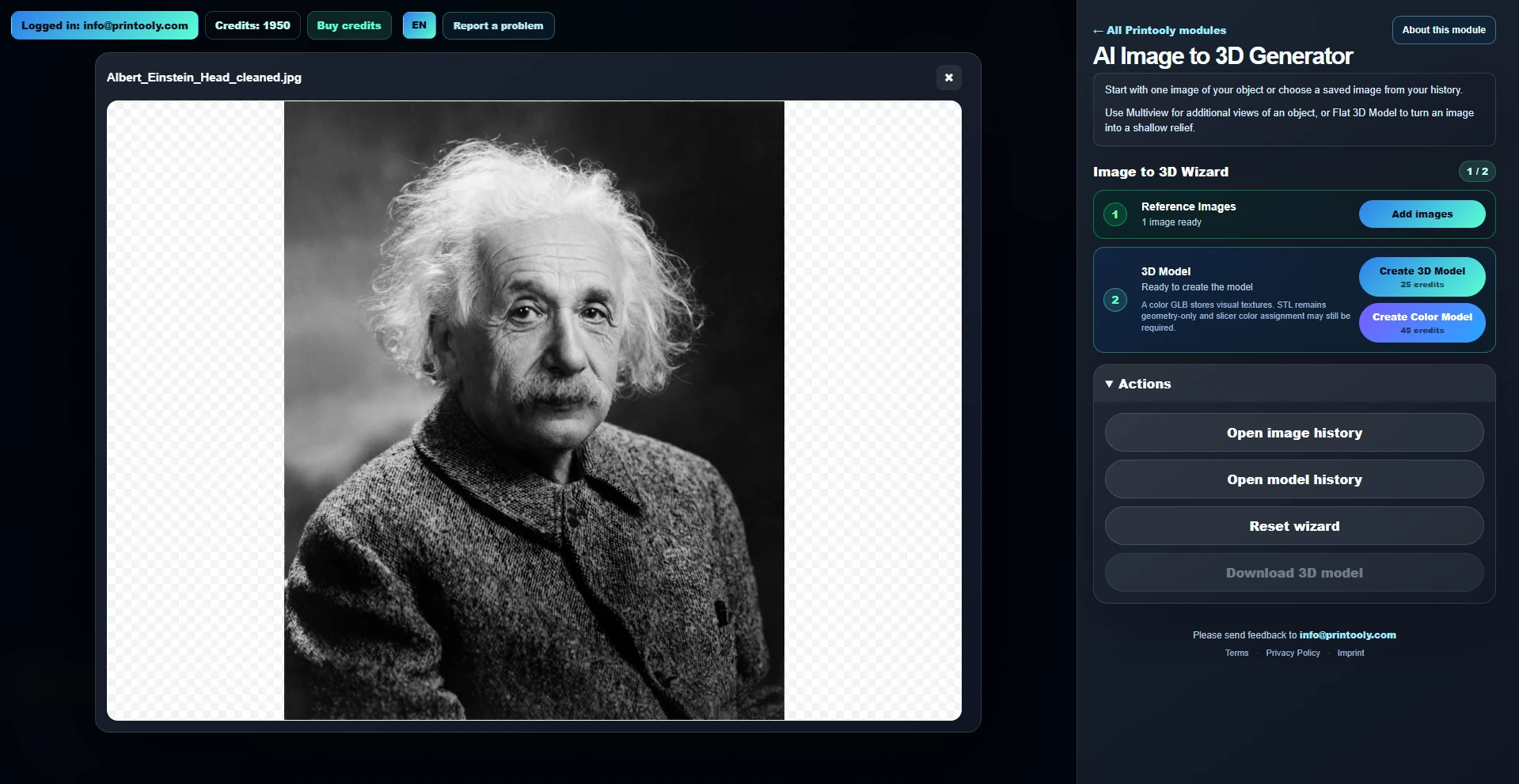
This Einstein portrait is the reference for the bust shown here. One front image was used, with Multiview and Flat 3D Model switched off. Explore the original screenshots to see the input and the result in Printooly.

The Einstein portrait used as the front reference in Printooly

The starting point

One reference photo

A JPG portrait, uploaded as the front view.

The generated Einstein bust shown at an angle in the Printooly viewer

The generated result

A digital 3D bust

The matching result, shown in the model viewer.

Input
1 JPG portrait
Reference view
Front
Multiview
Off
Flat 3D Model
Off
Follow the workflow
  1. Add your portrait

    Open Add images and upload a clear photo into Front view. Include the head and shoulders for a bust, or the whole person for a full-body figure.

  2. Generate and inspect

    Review your reference, then choose Create 3D Model or Create Color Model. The tool shows the credit cost before generation. Rotate the result to inspect the face, hair and back.

  3. Download and prepare

    Use Download 3D model when the result is ready. A newly generated model package includes GLB, STL, reference images and a README. Open the STL in your slicer to choose scale, orientation and supports.

Look closely before printing
  • Fine hair and small details

    The bust has thin hair strands. Inspect them in your slicer and adjust or simplify fragile details for your printer and chosen size.

  • The face and unseen sides

    A single photo does not show every surface. The AI interprets missing details, so check the likeness, the back and the underside of the model.

  • Geometry and color

    Check the mesh and support requirements before printing. STL stores geometry; GLB can carry textures. Those textures do not automatically assign filament colors in a slicer.

What could your photo become?

Try your own reference on a desktop or laptop. You can read this guide and save the tool on any device.

Try with your photoSave for your computer

Your starting point

How it works

From your first idea to your next step.

  1. Upload a clear reference image or choose one from your history. For a person, show the parts you want in the model as clearly as possible.

  2. Use Multiview to upload or generate matching views, or choose Flat 3D Model for a relief. Start with a front view; extra views are optional. Review the selected images.

  3. Generate your 3D model, inspect it from all sides and download it for a check in your slicer.

PRINTOOLY

Access and pricing

Uploads and history selections are free. One generated Multiview image costs 2 credits; generating all three Flat 3D Model views costs 4 credits. 3D model generation is charged separately. Sign in on a computer; each paid action shows its cost first.
Before you finish

Before you finish

AI reconstructs details that are missing from the photo. Faces, hands, proportions and hidden sides may differ; this is not a precise 3D scan. Check geometry, thin details, supports and size in your slicer. Mesh cleanup may be needed. A textured GLB does not automatically assign filament colors.

About this module

A few things worth knowing

Can I turn a person into a 3D model?

Yes. Start with a clear photo; use a full-body image if you want a full-body figure. Add matching views in Multiview where available. Review the face, hands and unseen sides carefully: the result is an AI interpretation.

What is the difference between Multiview and Flat 3D Model?

Multiview uses reference images of an object from different angles. Flat 3D Model is for a shallow relief and can generate a raised front, a flat back and a thin side view from your illustration. Additional views are optional in both modes.

Which tool should I use for my pet or a flower pot?

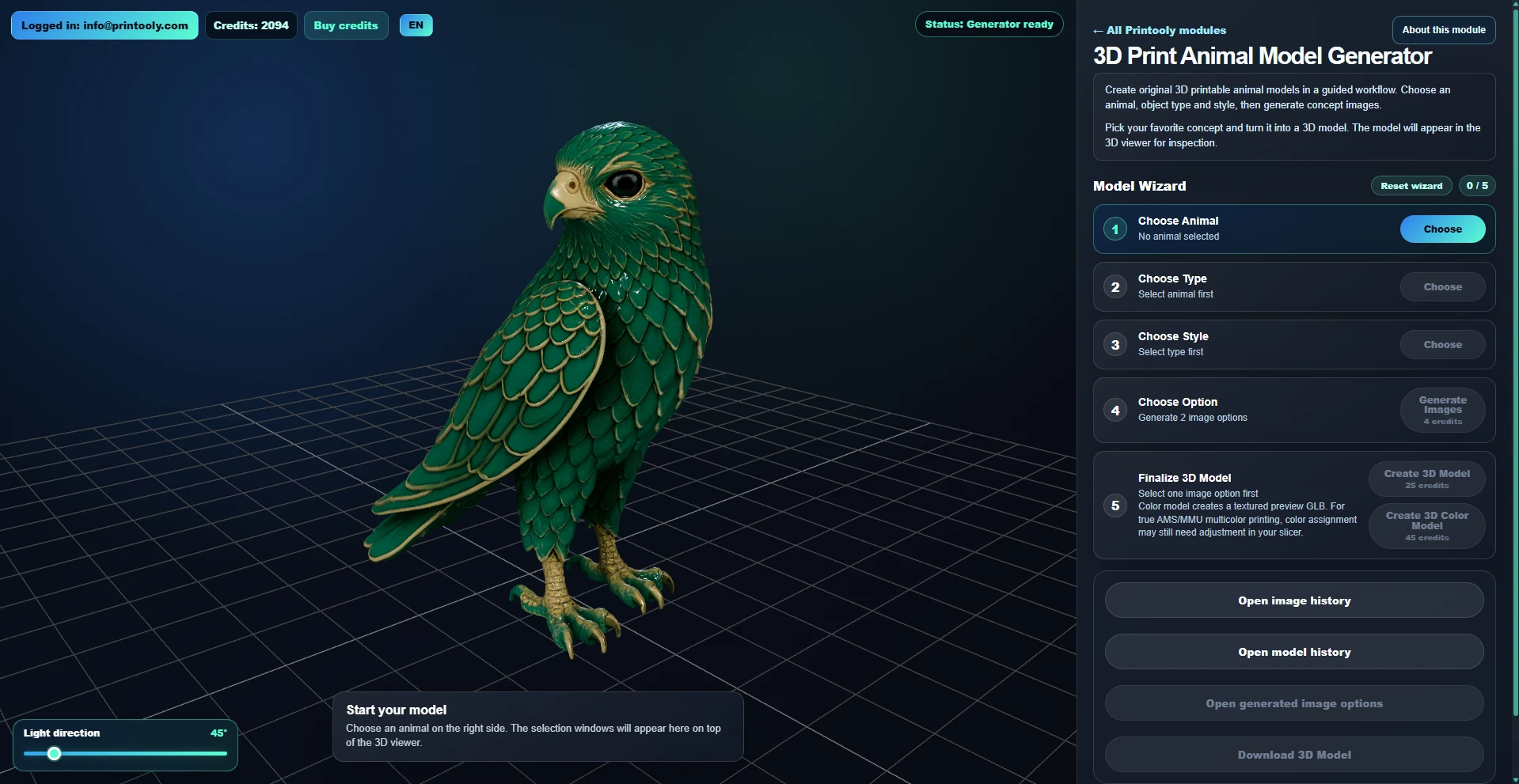
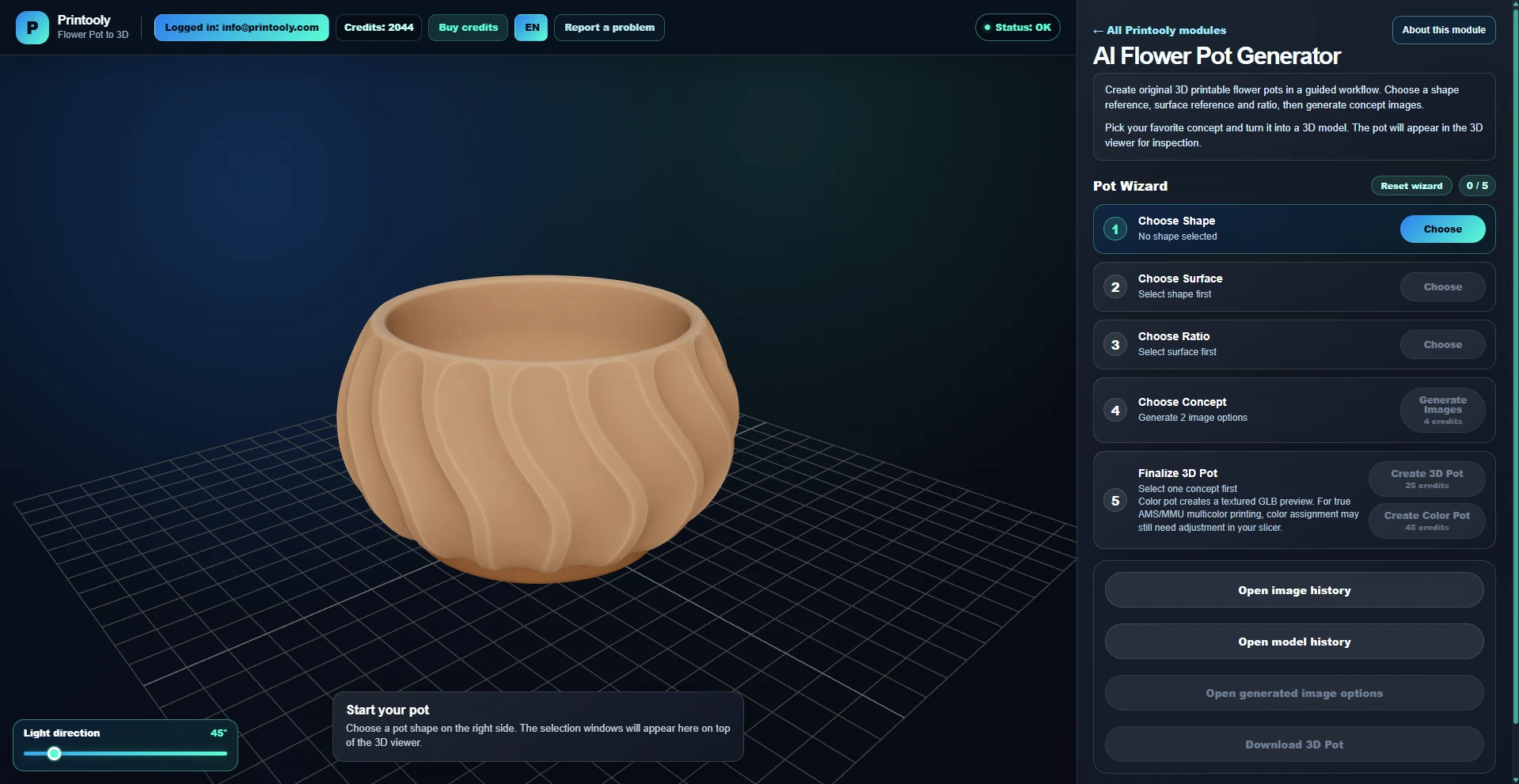
Use Animal Generator for a pet photo and its animal-specific object and style choices. Use Flower Pot Generator for a pot photo with shape, surface and proportion options. Both are linked below.

READY WHEN YOU ARE

Save this tool

Save this link and open the tool on a desktop or laptop when you’re ready to create.

Open tool ↗