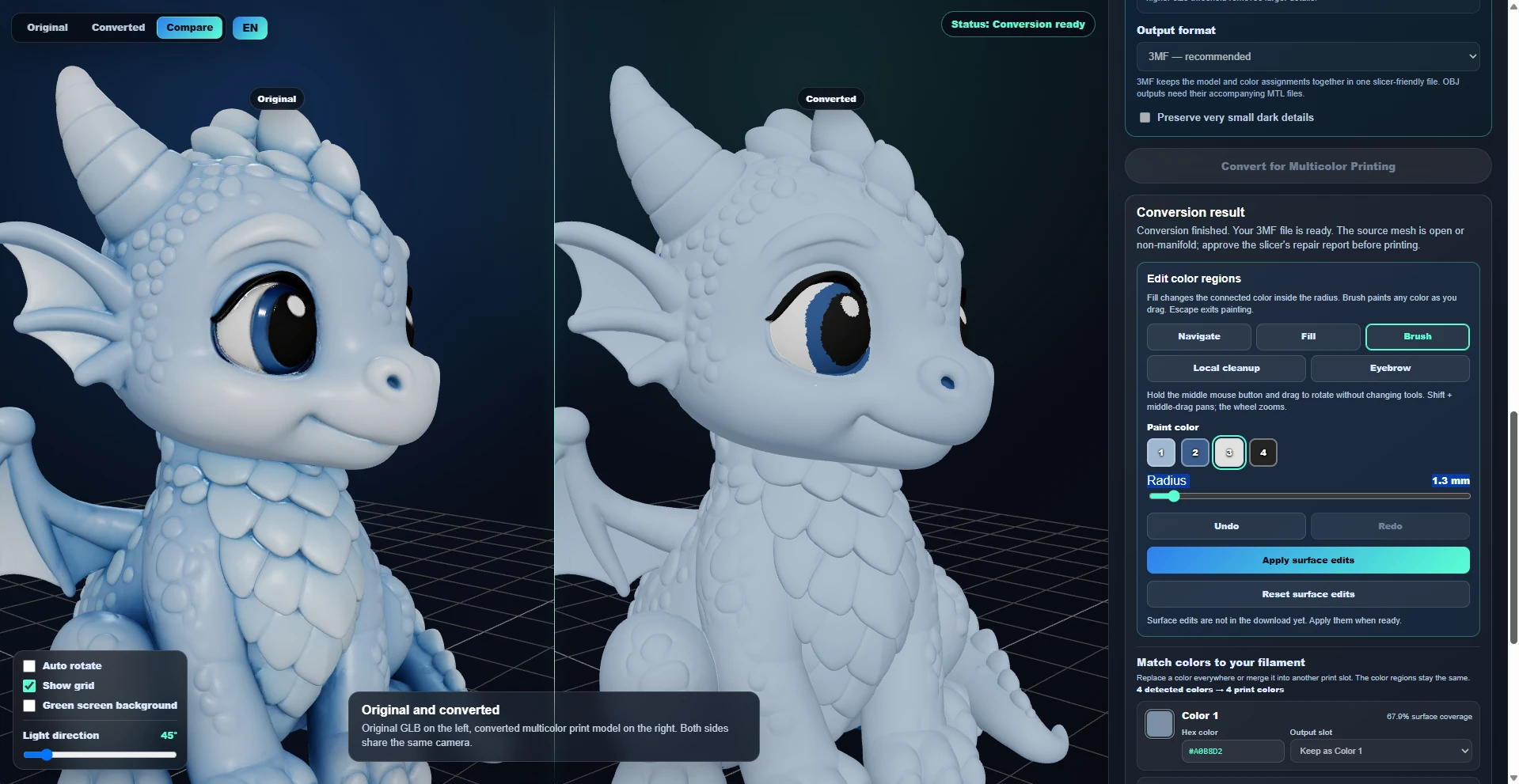
Brush
Choose a palette color and drag to paint the surface. Adjust the radius for small details or broader strokes; Brush can paint across existing color boundaries.
 Printooly
A closer look at your next idea
Convert a textured GLB into color regions for 3MF or OBJ/MTL export. Choose your palette, then refine the converted model with Brush, Fill and Local cleanup before assigning filaments in your slicer.
On phones and tablets, you can explore the tools and read their guides. Uploading, editing, generating and exporting require a desktop or laptop.
A textured GLB model.
A 3MF file, an OBJ/MTL ZIP, or a ZIP containing both formats.
Your starting point
From your first idea to your next step.
Upload your textured GLB model.
Choose the color count, convert the model and inspect the palette and preview. Replace or merge colors as needed, then apply your palette changes.
Open the surface tools on the exact converted preview. Use Brush, Fill or Local cleanup to refine individual color areas.
Apply your surface edits, download the 3MF or OBJ/MTL result and check the filament assignments in your slicer.
AFTER CONVERSION
Finish your palette choices and apply them first. Surface tools work on the exact converted preview; they are unavailable on an approximate preview. Changing global colors or conversion settings after painting requires resetting your surface edits.
Choose a palette color and drag to paint the surface. Adjust the radius for small details or broader strokes; Brush can paint across existing color boundaries.
Recolor a connected area of the same color within the chosen radius. Fill stops at existing color boundaries, making it useful for controlled changes.
Drag over small color spots or thin fringes to replace them with the dominant neighboring color. Adjust the radius and size threshold. This cleans color patches, not model geometry.
Change a color everywhere or merge it into another print color. Set these global choices and apply them before refining individual areas with the surface tools.
Step back or forward through surface edits while refining your model. Reset surface edits when you want to start again or change the global conversion settings.
Choose a palette color and click the center of a clearly bounded, raised detail, such as an eyebrow or ornament. Include the whole detail and surrounding surface in the radius; increase sensitivity for softer edges. Undo before retrying. Use Brush or Fill for flat texture areas.
Upload and configure the model on a desktop or laptop. Review your chosen export and color settings before downloading.
Color conversion is an approximation of a textured model. Check the imported colors, filament assignments and geometry in your slicer.
About this module
Yes. On the exact converted preview, use Brush or Fill to recolor an area, or Local cleanup for small spots and thin fringes. Local cleanup changes color assignments; it does not repair the model’s geometry.
Choose, replace or merge your global colors first and apply those changes. Then refine the surface. Changing the palette or conversion settings later requires resetting your surface edits.
Apply palette changes before painting, then use Apply surface edits when your refinements are ready. Download the updated result and check material and spool assignments in your slicer. Screen colors only approximate real filament colors.
Choose a palette color and Detail Fill. Include the whole raised detail and some surrounding surface in the search radius, then click near its center. Try an eyebrow, raised lip, claw or ornament where a clear crease defines the shape. Increase sensitivity for softer edges, and Undo before retrying. Detection is experimental and follows geometry. If it cannot find a clear boundary, use Brush or Fill; these also work for texture-only details. Apply surface edits before exporting.
MORE TO EXPLORE
READY WHEN YOU ARE
Save this link and open the tool on a desktop or laptop when you’re ready to create.